GUI User Manual
Learn how to use the graphical user interface (GUI) for SOFA Robotics, designed to facilitate the programming and control of your robot simulations.
SOFA is an open-source framework designed for interactive mechanical simulations, with a strong focus on bio-mechanics and robotics. It provides advanced constitutive models and algorithms for efficiently computing both soft and rigid body dynamics. SOFA supports linear and non-linear elastic models, offers both explicit and implicit integration schemes, and includes traditional linear solvers.
At Compliance Robotics, we have developed a dedicated graphical user interface (GUI) for SOFA, tailored specifically for robotics applications. This open-source software enables you to control and program your robot with ease.
GUI Overview
Simulation & Windows
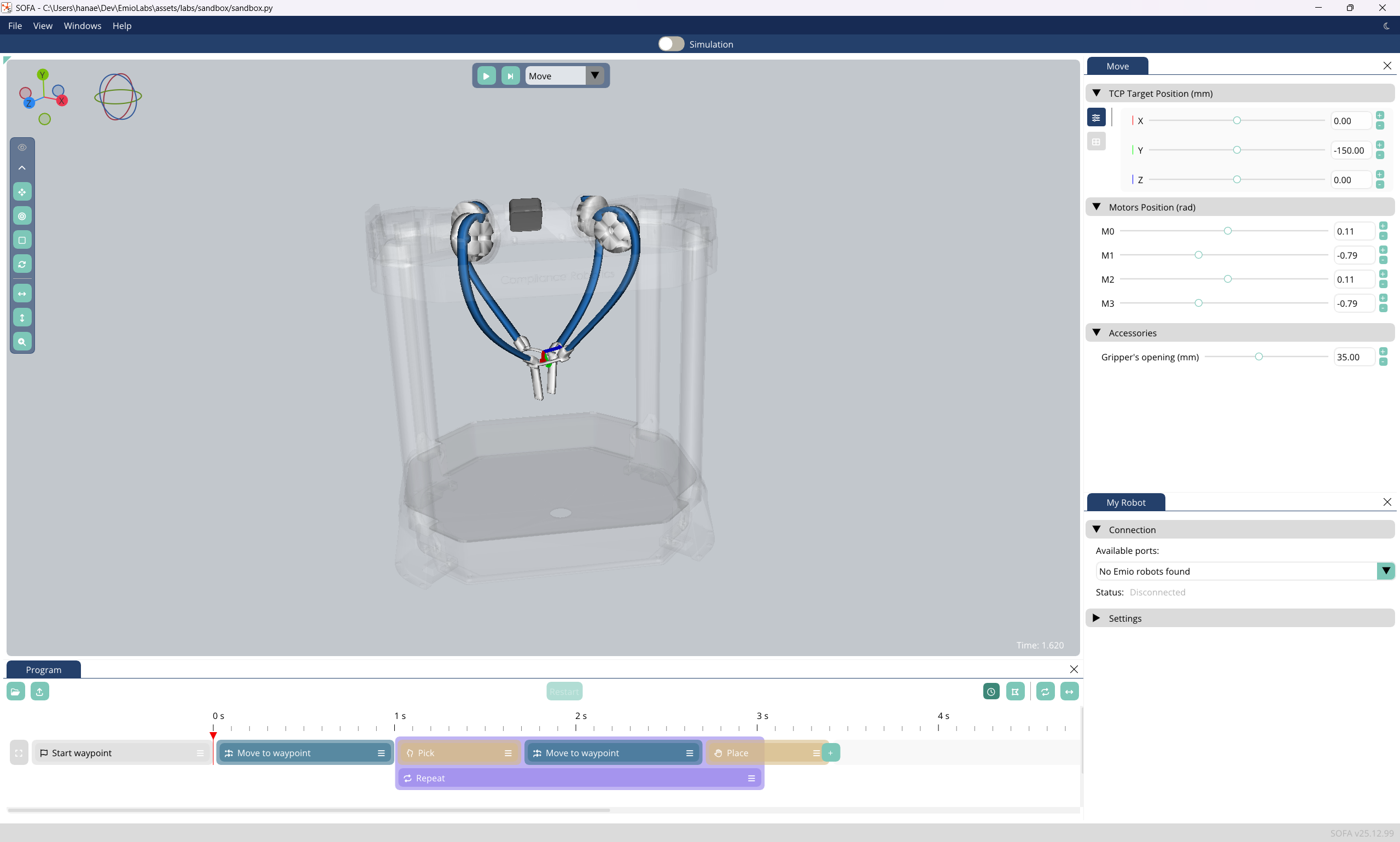
The software consists of two main components: a 3D view of the simulation and a set of windows. In the 3D view, you can observe the simulated robot. To change what is displayed in the 3D view, from the main bar, go to View>Viewport.
The windows offer various functionalities, enabling you to program or directly control your robot.
Overview of the Windows
- Program: Create a program for your robot
- Move: Directly control your robot using sliders for the tool center point’s (TCP) target or motor adjustments.
- Input/Output (wip): Pilot your robot or create your program using inputs from external software.
- My Robot: View information about the robot and adjust settings.
- Plotting: Display simulation data in graphical form.
- Viewport: The 3D view of the simulation.
- Scene Graph: View the scene graph of the simulation.
- Log: Display the log of the simulation.
Overview of the Viewport
- 3D view of the simulated robot.
- Play/Pause/Step the simulation using the buttons at the top center of the 3D view.
- The TCP target is visualized as a frame (blue, red, and green).
- Use the combo box near the play/pause/step buttons to choose which window controls the TCP target:
- Move (via sliders or a pad)
- Input/Output (wip: via an external software)
- Program (via way-points)
Controlling the Real Robot
The Simulation/Robot switch button toggles the connection between the simulation and the real robot. In Simulation mode, the robot remains stationary. It's advisable to use this mode to test your programs before operating the actual robot.

Light / Dark Mode
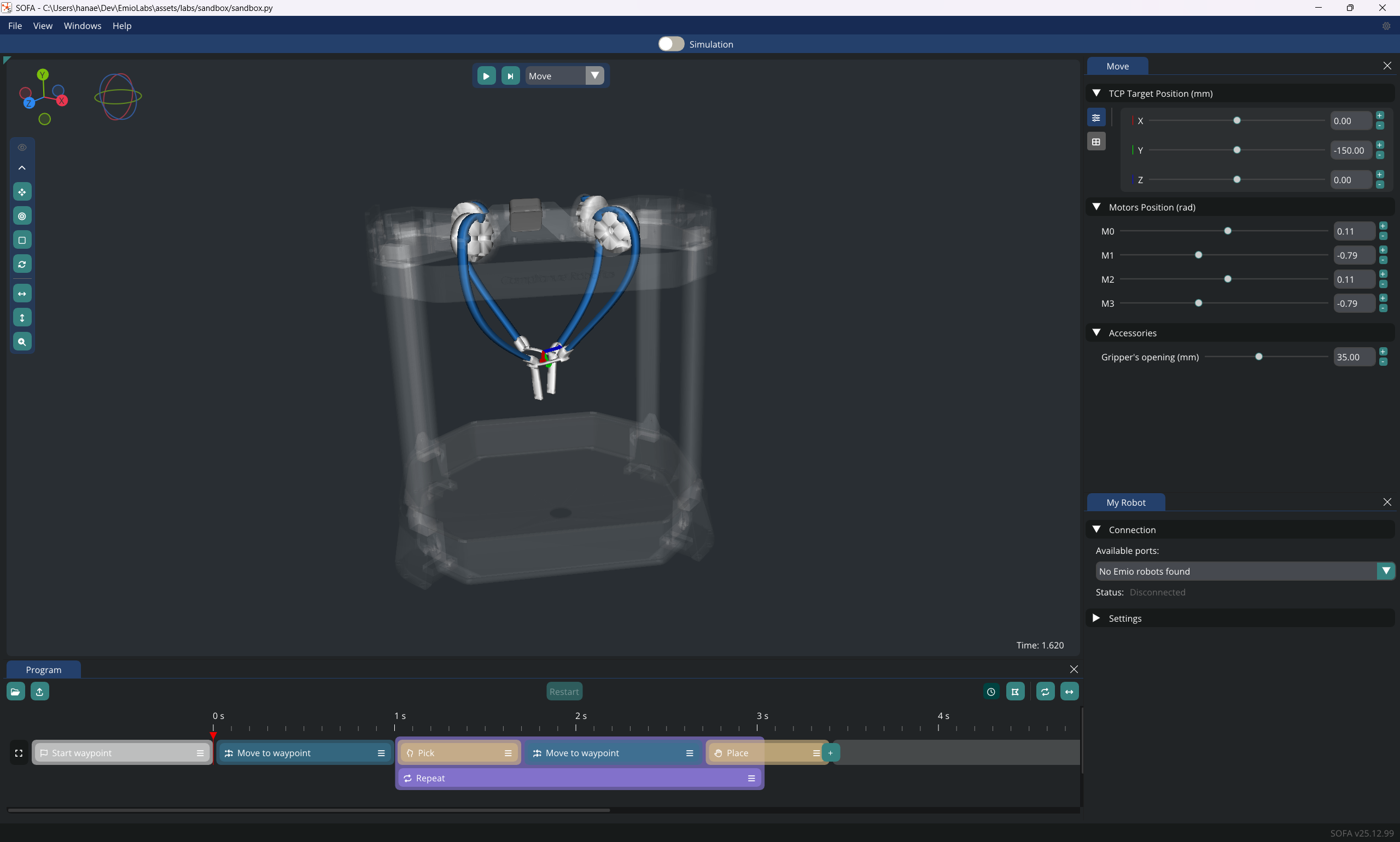
Switch the GUI between dark and light mode using the sun/moon button at the top right of the GUI.
Windows
Program Window
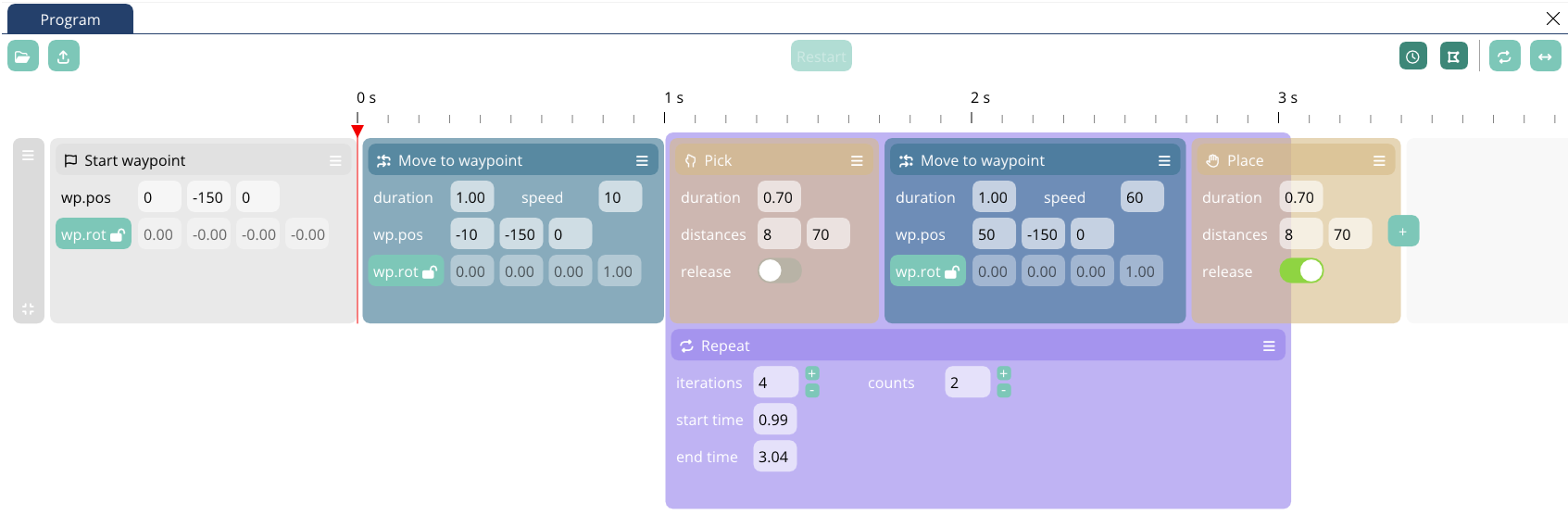
This window is used to program the robot. It is organized around a timeline. To program the robot (digital twin or real), add actions and modifiers blocks to tracks.
The Program Window top bar contains the following buttons (from left to right):
- Import: Import a program (.crprog file) to the software
- Export: Export a program
- Restart: Restart the program
- Display Blocks based on simulation time or not
- Draw the trajectory
- Repeat: Repeat the entire program from start to end
- Reverse: Loop the entire program, going forward and backward
When the Draw trajectory button is toggled, you can highlight the section of the trajectory corresponding to a specific Move Action Block by hovering over the block with your mouse.
Program Blocks
There are several blocks to compose your program:
- Action blocks:
- Move: Define a waypoint for the TCP target
- Wait: Add a pause to your program
- Pick: When equipped with a gripper, program the closing of the gripper
- Place: Program the opening of the gripper
- Modifier block:
- Repeat: Repeat a section of your program
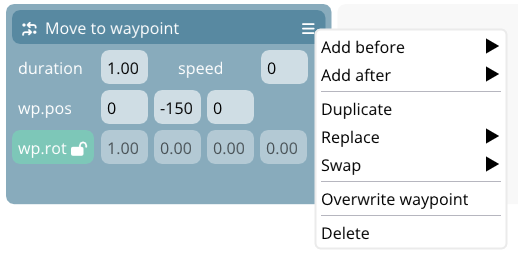
All blocks have a contextual menu with utility actions:
- Add Before/After: inserts a block before or after the block
- Duplicate: ducplicates a block after
- Replace: turns the block into another block type
- Swap: swaps between either the block before or after
- Overwrite: overwrites the position of the waypoint with the current position in the move window (only available with Move block)
- Delete: deletes the block
You can also insert a block or swap blocks thanks to the inter-blocks buttons (see image below) that appear when hovering between two blocks.

Move Action Block
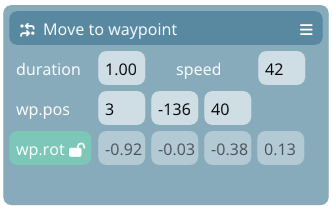
The Move block adds a waypoint to the target's trajectory.
The Move block contains the following values:
- duration: duration in seconds for this block to reach the waypoint's position. Setting the duration will change the speed accordingly.
- speed: speed at which the target will move towards the waypoint. The unit depends on the scene unit. Setting the speed will change the duration accordingly.
- wp.pos: sets the waypoint position toward the target will move
- wp.rot: the waypoint rotation toward the target will move. Only available if the simulation allows it
If you use the Move Window to place the effector at a desired position and then add a Move Action Block to the track, it serves two purposes. First, it's an excellent way to test if the desired position is within the robot's working space. Second, this position will be used to initialize the Move Action Block.
You can always adjust the waypoint position directly on the block. Additionally, you can modify the duration of the motion or its speed.
Wait Action Block
The Wait block pauses the trajectory for a given duration, set in seconds.

Pick and Place Action Blocks
The Pick and Place blocks control the gripper's opening distance and so is only available if the simulation has a gripper. Basically, these blocks are the same except that the release toggle is active in the case of the Place block. This means that the you can transform a Pick block into a Place one by activating the reease toggle and vice-versa.
They both have the same values:
- duration: the duration for the opening or closing in seconds
- distances: the closing and opening gripper distance in your scene unit
- release: toggle to activate the release of the gripper, meaning apply the opening distance (right value)


Repeat Modifier Block
The Repeat block allows to repeat mutiple times a part of the program. It does not have to exactly match the start or end of a block.
The values you can set for the Repeat block are:
- iterations: the number of times you want to repeat what is in the block
- counts: the remaining number of iterations to go through
- start time: at what time in the timeline the repetition starts. You can drag the left side of the block to define it as well.
- end time: the time in the timeline at which the repetition ends. You can drag the right side of the block to define it as well.
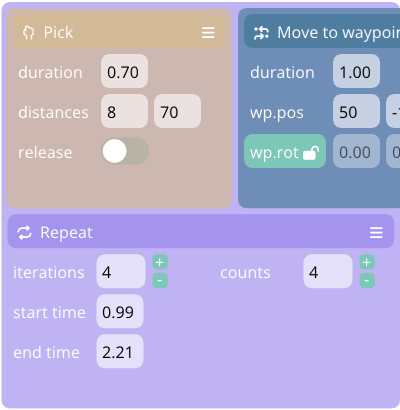
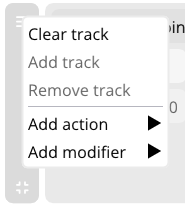
You can add this block using the menu of the track then Add Modifier.
Move Window
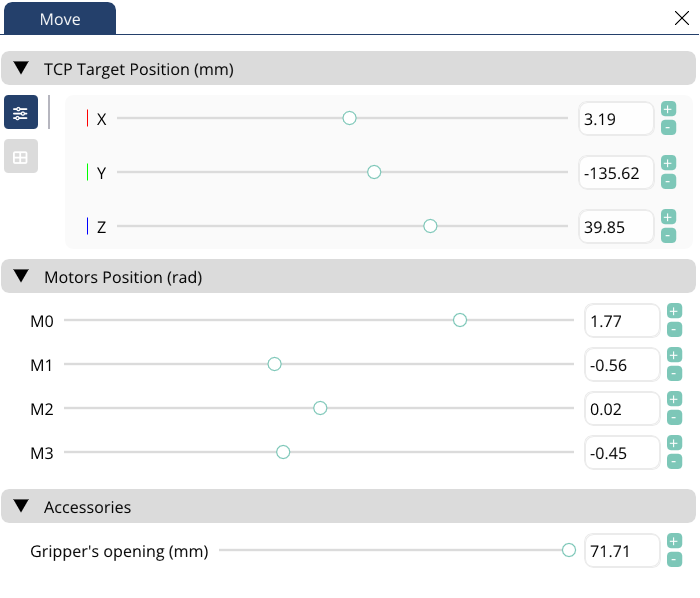
The Move Window allows you to directly control your robot in real-time using sliders. There are typically two control modes available:
- Effector Control: Control the position and orientation of the robot's end-effector (TCP) using six sliders for X, Y, Z positions and Roll, Pitch, Yaw rotations.
- Motor Control: Directly control individual motor angles of the robot using dedicated sliders for each angle.
This window is particularly useful for:
- Exploring the workspace of the robot
- Testing specific positions that can be saved as waypoints in your program
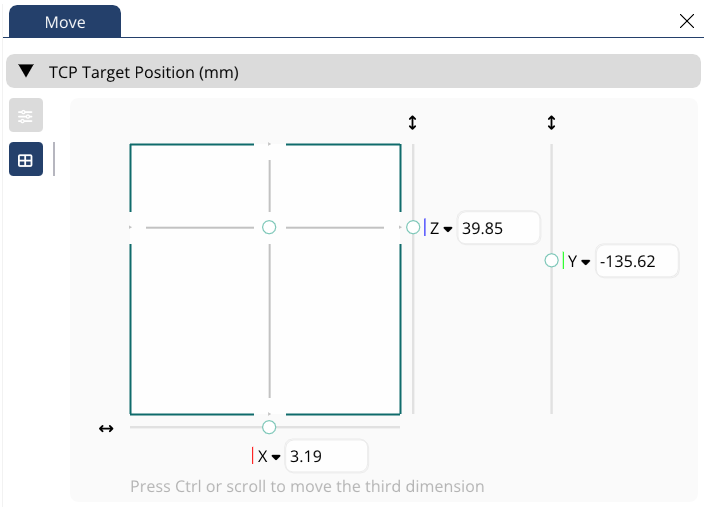
You can also control the TCP target position using the Move Pad widget.
To control the target in a plane,
- grab the knob and drag it into the pad
- press the left
Ctrlkeyboard key, to switch control to the third axis.
Input/Output Window (WIP)
This window is under development. For now there are no suppor for ROS or any communication protocol.
The Input/Output Window allows you to interface the simulation with external software. Using communication libraries like ROS (Robot Operating System), you can send data directly to control the robot's behavior.
This integration enables:
- Real-time control of the robot from external applications
- Data exchange between the simulation and other robotics software
- Implementation of custom control algorithms developed in other environments
The window provides options to configure the communication settings and monitor the data flow between the simulation and external software.
My Robot Window
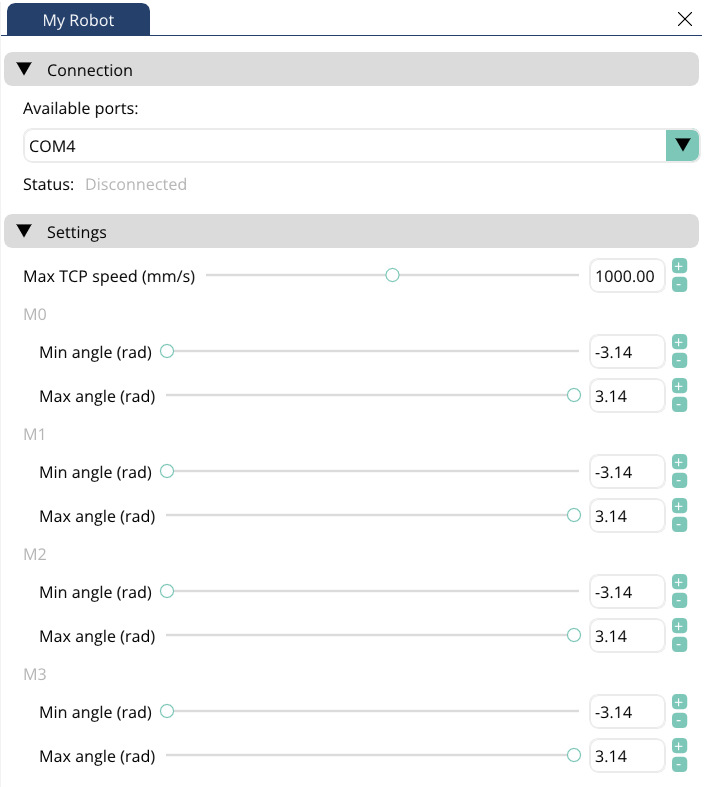
The My Robot Window displays essential information about your robot and allows you to adjust various settings. What can be seen and modified is defined inside the simulation scene file.
Key features include:
- Port Selection: Select the port to which to connect and see the connection status. This means you can have multiple Emios connected to your computer.
- Robot Information: View technical specifications
- Settings Configuration: Adjust operational parameters such as maximum speed and acceleration
Plotting Window
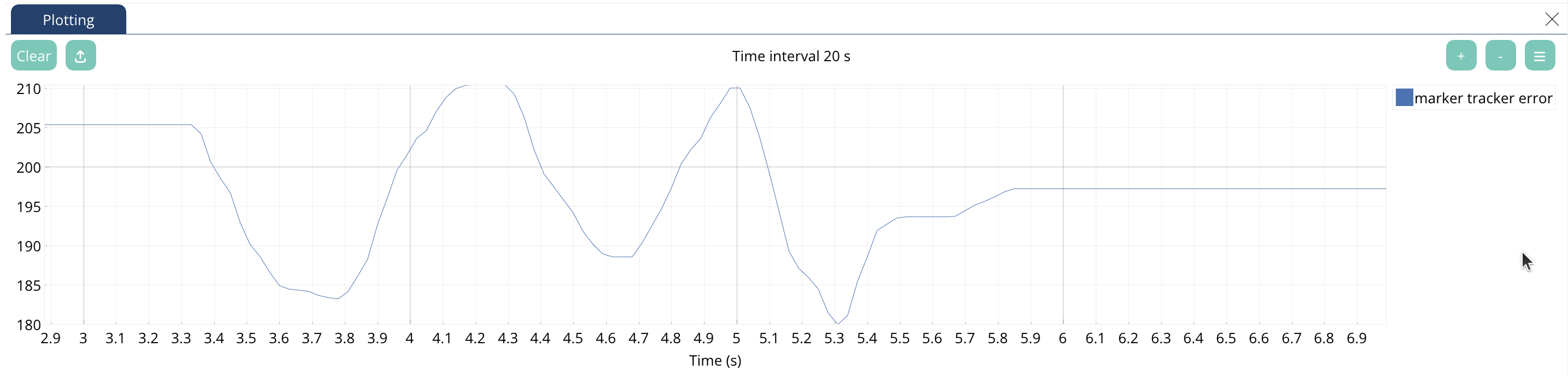
The Plotting Window provides powerful data visualization capabilities for analyzing simulation data in real-time. The available data are defined in the simulation scene file.
Key features include:
- Real-time Plotting: View live data from the simulation as it runs
- Multiple Data Types: Plot various parameters including:
- Joint angles and velocities
- Forces and torques
- Customization Options: Adjust plot settings such as:
- Time window
- Axis ranges
- Data sampling rate
- Data Export: Save plot data for further analysis in external software
This tool is particularly useful for:
- Analyzing robot movement patterns
- Verifying program execution
- Debugging unexpected behavior