App User Manual
Welcome to the user manual of the Emio Labs application.
Introduction
This desktop application is designed to teach soft robotics through interactive labs. This manual will guide you through the application's features and help you navigate the learning process.
Getting Started
System Requirements
Ensure your system meets the following minimum requirements:
- Operating System (OS) minimum: Windows 10, Ubuntu 22.04 or MacOS14
- RAM: 16GB minimum
- Storage: 2GB free space
Installation
Download the Emio Labs application for free. After completing a form, you'll receive an email with download links. Choose the version that matches your operating system. Each version comes in three formats: an installer, a portable, or a .zip file containing the binaries.
- Linux
- Windows
- MacOS
-
To use the portable
.AppImage, install libfuse2:sudo apt install libfuse2 -
When trying to connect the real robot, if you get a
[Errno 13] Permission denied: '/dev/ttyUSB0'message. Run the following command in terminal:sudo chmod 777 /dev/ttyUSB0. Make sure that the name of the USB port matches the one from the error message.
- Installer. If you have downloaded an installer
.deb, run it and follow the on-screen instructions. When the installation is completed, simply search for the Emio Labs application on your computer, as you would do with any other software. - Portable. If you have downloaded a portable
.AppImage, untar the file, the Emio Labs application is the resulting executable file. - Binaries. If you have downloaded the
.zipfile, first, unzip the directory. The Emio Labs application is then located at the root of the directory.
-
All formats require Microsoft Visual C++ 2022 Redistributable to be installed.
-
Depending on your version of Windows, you may need to install the FTDI drivers to pilot the robot. This is typically necessary if, upon connecting the robot to your computer, you encounter the following error message:
[ERROR] No serial port found with manufacturer = FTDI.
Installing the drivers should resolve this issue.
- Installer. If you have downloaded an installer
.msi, run it and follow the on-screen instructions. When the installation is completed, simply search for the Emio Labs application on your computer, as you would do with any other software. - Portable. If you have downloaded a portable
.exe, the Emio Labs application is this executable file. Note that the application may take a while to open, as the software needs to install itself in a temporary directory before launching. - Binaries. If you have downloaded the
.zipfile, first, unzip the directory. The Emio Labs application is then located at the root of the directory.
- Install Python 3.10 for MacOS from python.org.
- Download the file requirements.txt.
- And finally, install the required Python modules by running
python -m pip install -r requirements.txt.
- Installer. If you have downloaded an installer
.dmg, run it and follow the on-screen instructions. - Portable. If you have downloaded the
.zip, double-click the file to create a.appfile.
To launch Emio Labs on MacOS, please refer to the section below
Running Emio Labs on MacOS
The Lab Design is not working on MacOS due to an issue with gmsh.
If you are running the Emio Labs on MacOS, you need to run it with admin privileges. This is necessary for the application to access certain system resources and functionalities, such as connecting to the real robot.
To run the application with admin privileges, open a terminal and use the following command depending on the installation method you used:
If using the portable (unzipped .app file):
cd path/to/where/you/unzipped/the/app
sudo ./emio-labs.app/Contents/MacOS/emio-labs
If installed with the .dmg file:
sudo /Applications/emio-labs.app/Contents/MacOS/emio-labs
You may encounter a security warning when launching the application for the first time.
To resolve this:
- Open System Settings.
- Go to Privacy & Security.
- Under the Security section, click on Open Anyway next to the message about the blocked application 'emio-labs'.
- Confirm by clicking Open Anyway in the pop-up dialog.
- Enter your password if prompted.
- Restart the application.
Application Overview
Emio Labs consists of several key components:
- Main Table of Contents: Navigate between different labs and access resources.
- Lab Environment: Interactive space where you'll follow learning materials and complete exercises and simulations.
- Simulation Application (sofa-robotics): Launch and interact with the numerical twin of Emio.
- To reset the application go to Edit > Reset App in the main menu bar. This will reset the quiz, select the default parameters in the labs, etc.
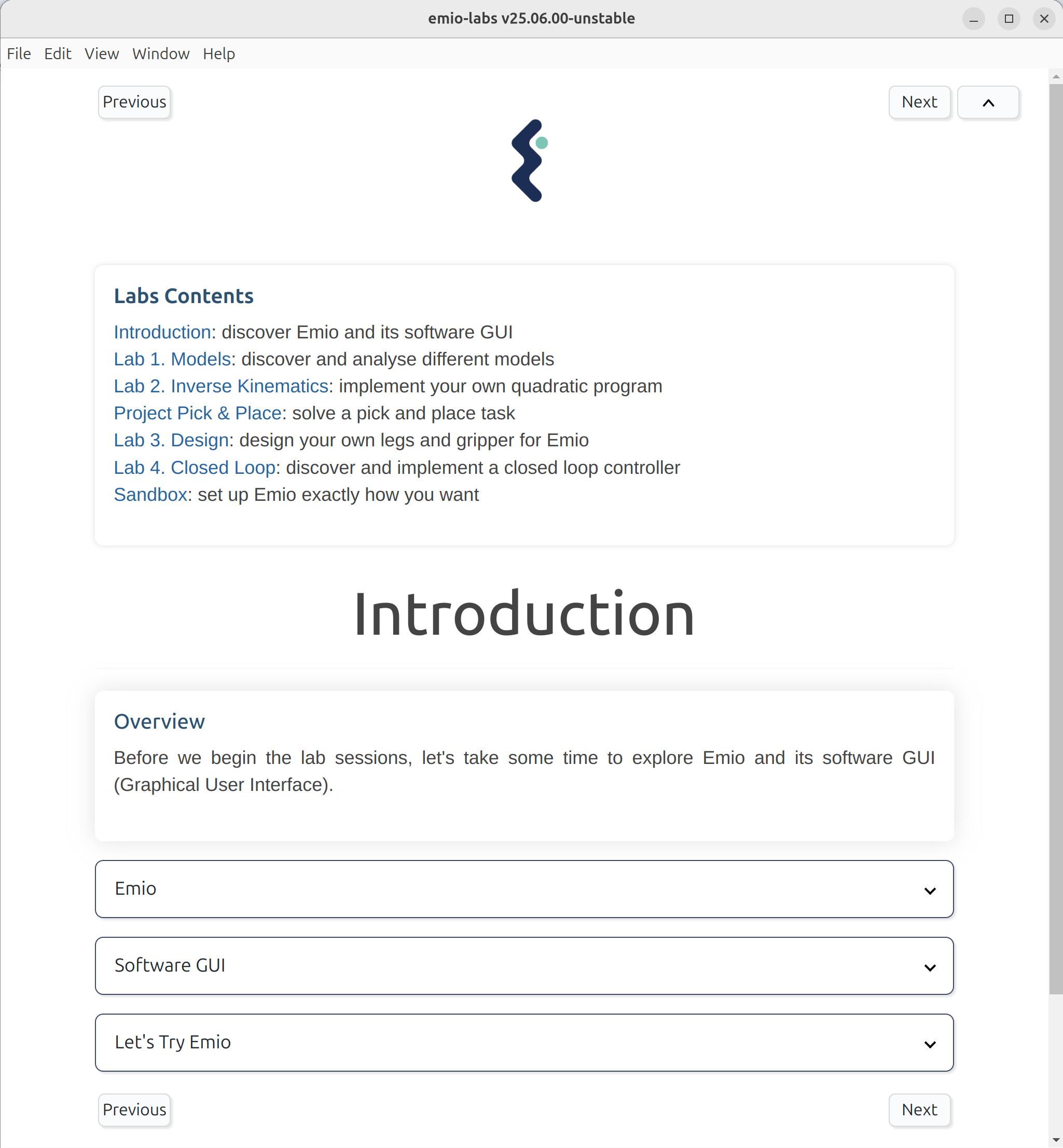
A directory ~/emio-labs containing all the assets (labs, python scripts, meshes, etc.) is created in your Home directory after the first run of the application. The application uses the files of this directory. If you make modifications and want to reset the directory to its original state, use the Reset Labs window (recommended), or remove the directory from your Home directory then rerun the application.
The Labs
The original content of Emio Labs created by Compliance Robotics offers a series of labs covering various aspects of soft robotics:
- Modeling
- Inverse Kinematics
- Pick & Place
- Design
- Closed Loop
To access a lab:
- Click on the desired lab from the table of contents.
- Read the lab overview and objectives.
- Follow the step-by-step instructions within each lab.
If you want to create your own content, you can follow this documentation.
Configuring the Labs
The Labs Configurator lists all the labs available for Emio Labs that are in the path/to/home/emio-labs/version/assets/labs folder.
From this window, you can activate a lab to be viewed in the app and reorder the labs by checking and drag and dropping the lab cards.
To open the configurator, click on Labs>Configure Labs in the top menu bar.

You can add a lab by inputting either of the following in the text input:
- A local path on your computer to a folder containing the lab material;
- e.g., /home/username/path/to/a/lab/folder
- A link (
httporhttps) to aziparchive.

Then click on the Add button to add the lab to the list of available labs for Emio Labs. This will copy or download the folder from the input into the path/to/home/emio-labs/version/assets/labs folder.
By default, the lab will be checked and added to the application.
A lab should follow the Lab Empty template. Refer to Create Your Own Lab for all the details to create a lab.
Resetting/Deleting the Labs
You can reset or delete labs by opening the Reset/Delete Labs window by clicking the Labs>Reset/Delete Labs. Resetting a lab means copying back the original content of the labs into the path/to/home/emio-labs/version/assets/labs folder. This way, if you made changes to the labs material, you can easily come back to the initial state.
In the window, either select the labs you want to reset and click the Reset Selected button or simply click the Reset All button to reset all the labs.
You can also permanently delete labs from the computer, using the same window (see image below).
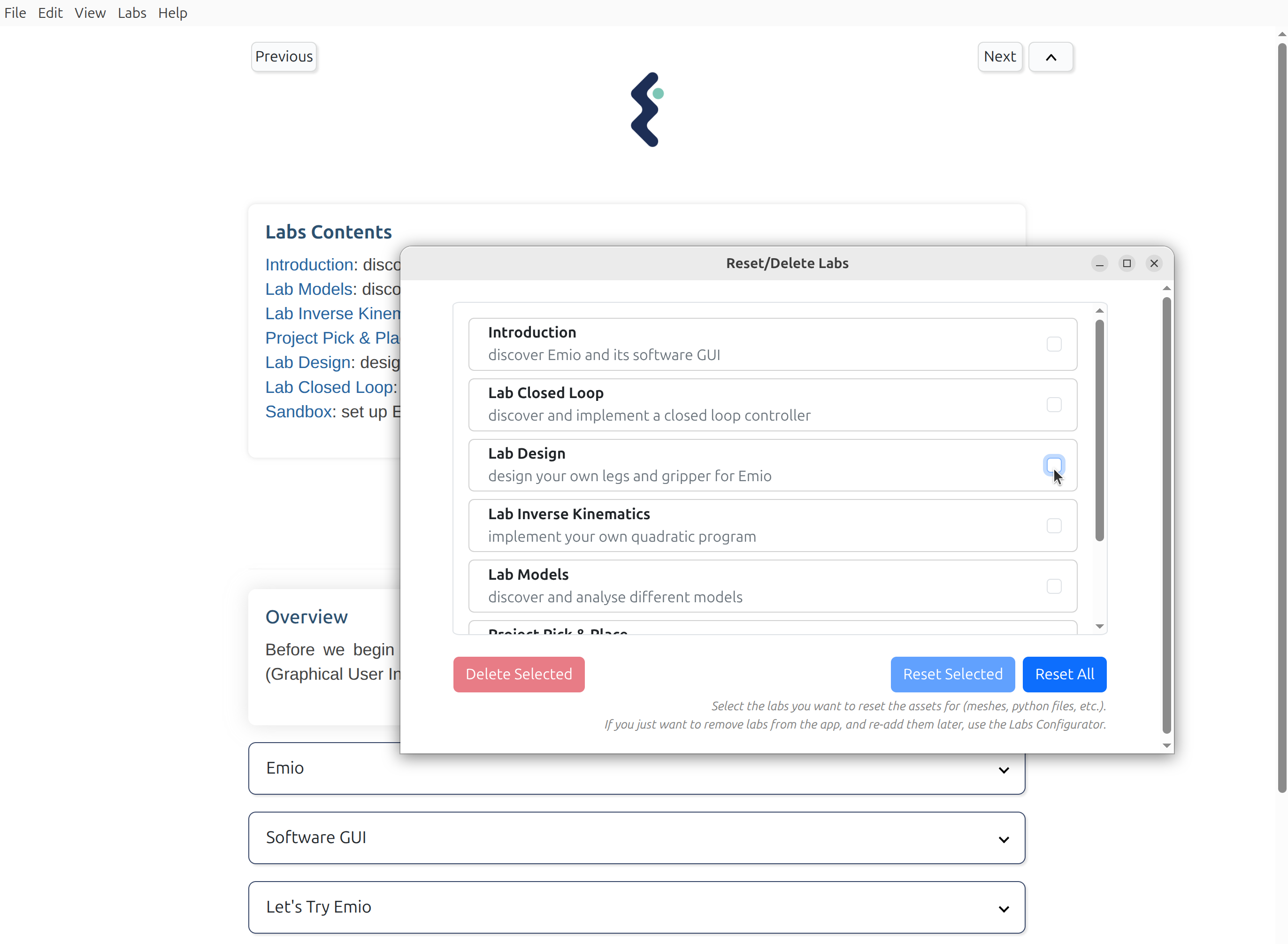
Note: You can only reset the labs that have been added with the Labs Configurator or the core labs.
To delete labs, just check the labs you want to delete and then click on the red Delete button.
Export/Import Labs Configuration
You can easily export and import labs configuration. It is particularly convenient when you want to share a labs configuration across several computers.
Click on the top menu bar in Labs>Export Config or Labs>Import Config.
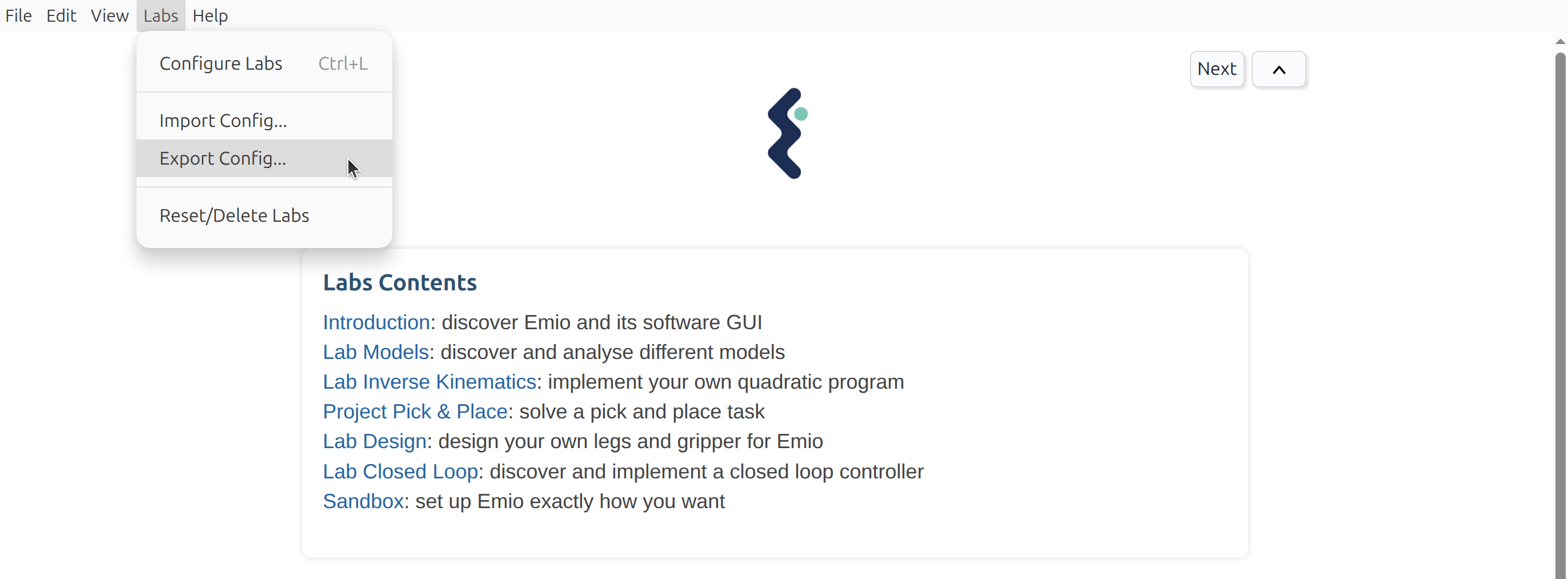
Manually Edit the Lab Config File
Note: This is not the recommended method. Instead, use the Labs Configurator.
The content of the application is set in the file assets/labs/labsConfig.json. If you want to add or remove some labs, you can simply modify this file. The order of the labs in the application will match the order in the labsConfig.json file. For example:
{
    "labs": [{"name": "introduction"},
             {"name": "lab_models"},
             {"name": "sandbox"}]
}
Using the Simulation Software
The simulation software provides a numerical twin of Emio for experimentation:
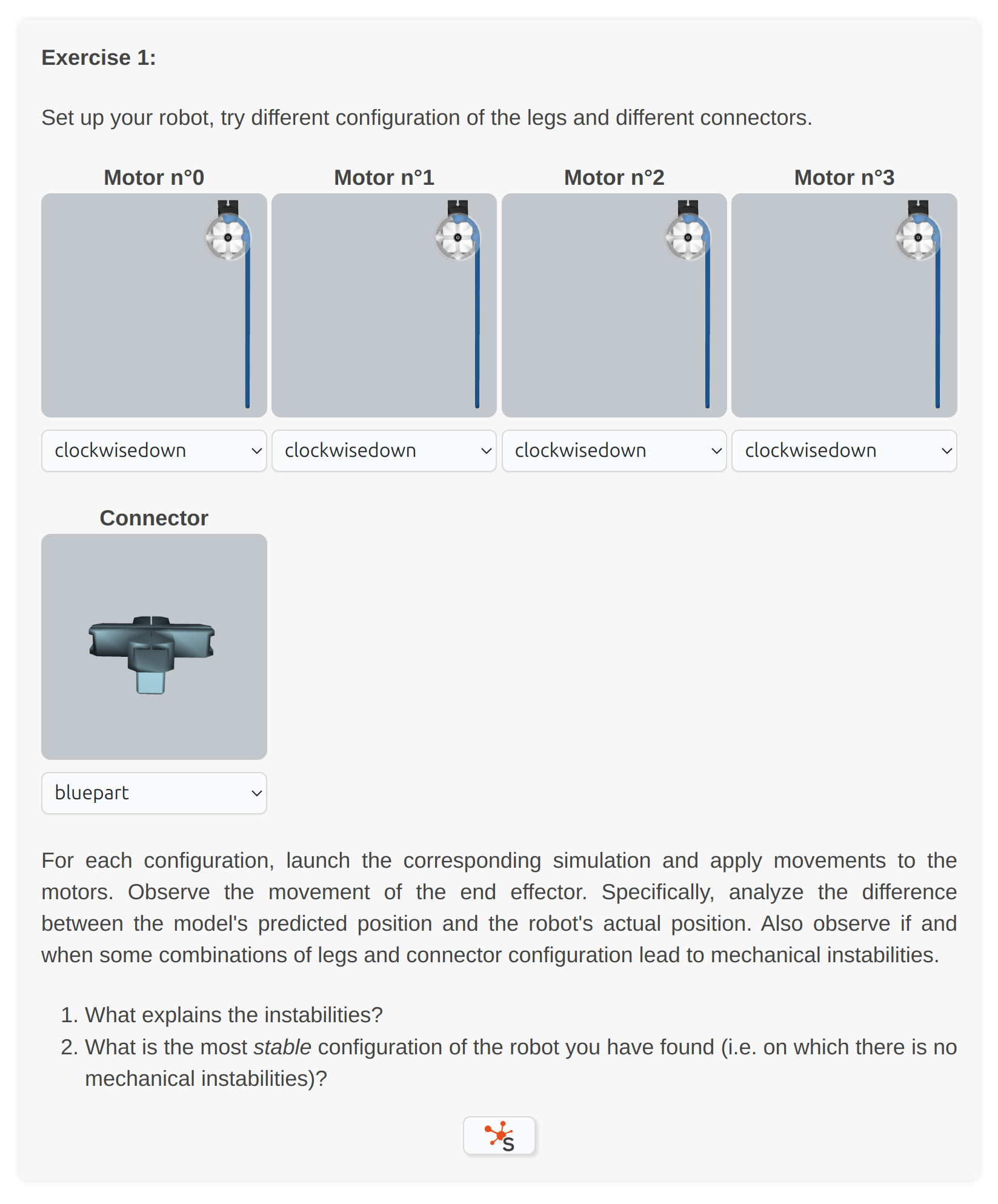
- Each lab contains exercise sections within you could be asked to launch the simulation corresponding to the exercise.
- To launch the simulation, click the SOFA
 button within the section.
 - For information about the simulation software, follow the SOFA Robotics docs.
Piloting the Real Device
After completing the requirements in simulation, you may have the opportunity to pilot the real soft robot:
- Ensure the physical device is properly connected and powered on by following this guide.
- Toggle the Simulation/Robot button at the top of the simulation software to establish a connection between the simulator and the real device.
- When in Robot mode, pressing the play button will send simulation commands directly to the real device.
- And finally use the interface controls to pilote Emio (see the SOFA Robotics docs).
Sandbox
The Emio Labs application offers a sandbox mode which allows you to set up Emio exactly as you want. Using the original set of legs and connectors or your own designed parts.
In the main dashboard click on the Sandbox link to open the corresponding page:
- Follow the instructions to help you set up your Emio and the numerical twin.
- Launch the corresponding simulation by clicking on the SOFA button as usual, and enjoy.
Install Python packages for Emio Labs
For some labs or if you are creating your own lab, you might need to install Python packages that are not shipped with the embedded Emio Labs Python.
To do this:
- Find the Python installation of Emio Labs by going to the installation folder of Emio Labs, for example on Windows that might be
C:\Users\<USERNAME>\AppData\Local\Programs\emio-labs. - There should be a folder
resources\sofa\bin\python. This is where the Python running with Emio Labs is. - Open a terminal in this folder ( e.g.
C:\Users\<USERNAME>\AppData\Local\Programs\emio-labs\resources\sofa\bin\python). - To install the Python package of name
lepackage, type inpython -m pip install lepackage - If admin rights are necessary, accept or type in the admin password when prompted
If you are on MacOS, there is no Python shipped with Emio Labs. Use the Python you installed in the installation process
Additional Resources
Access supplementary materials through this website, including:
For lab-related troubleshouting, refer to the documentation in the lab itself or the README file if you are using a lab from a Git repo.
For additional help or inquiries, please contact our support team using this form.