Release - Emio Labs v25.12


Highlights
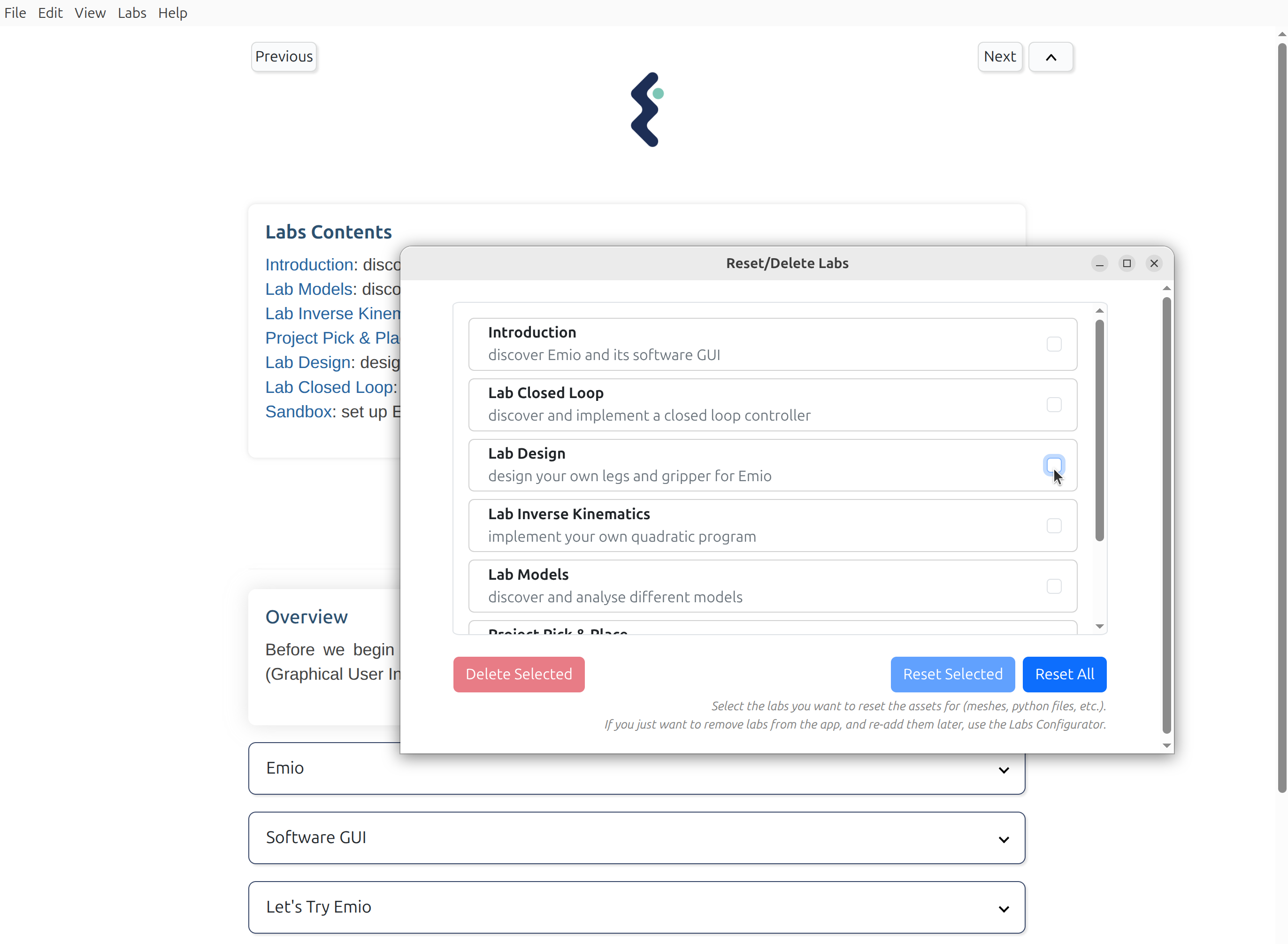
✨ Camera Calibration
We introduced a new process to calibrate the camera of Emio.
There are two ways to calibrate the camera:
- Using the Emio API to calibrate the camera programmatically.
- Using the Emio Labs camera calibration scene to calibrate the camera through the user interface from the sandbox section of Emio Labs.
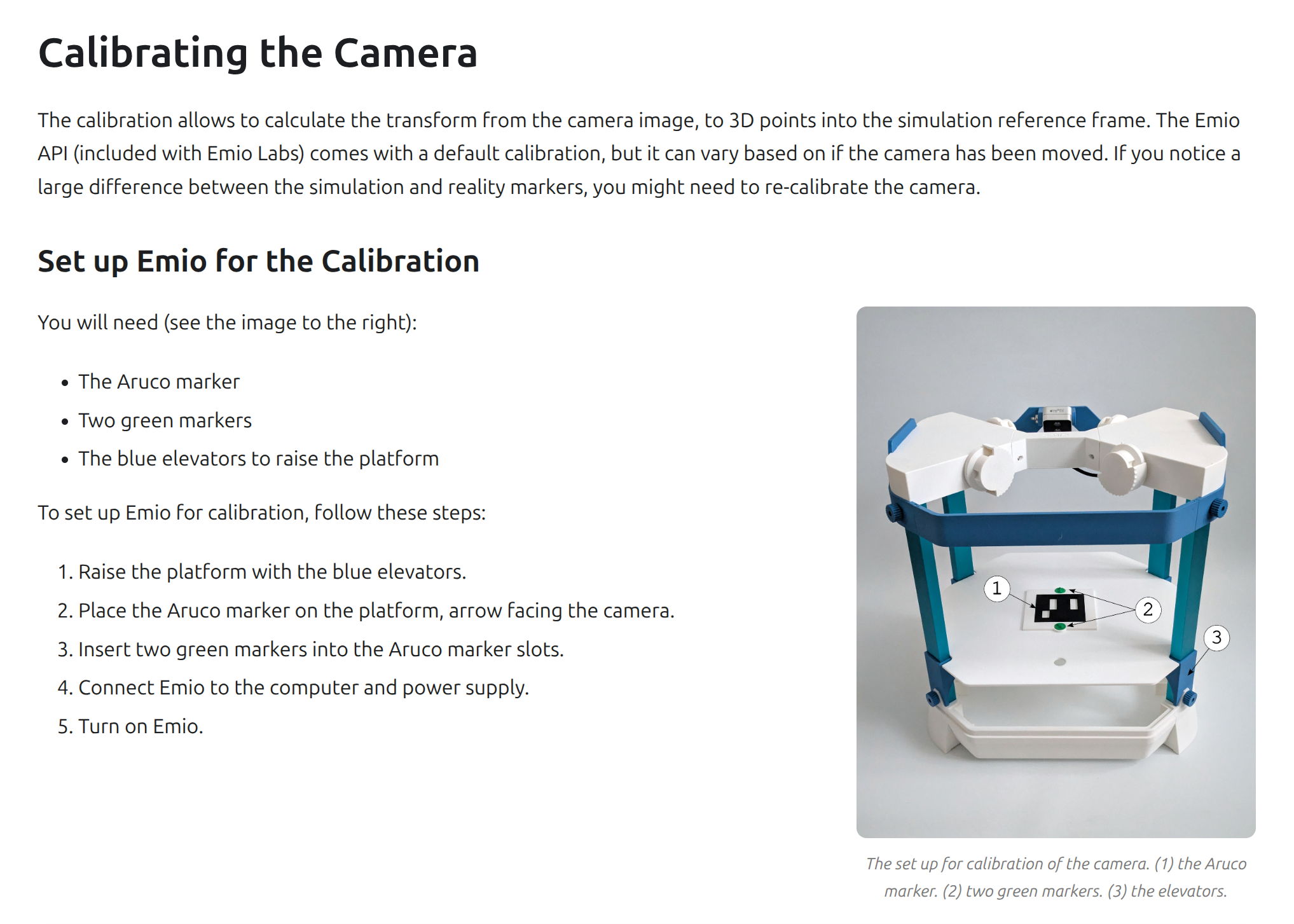
✨ Configure Labs
Configure your labs directly from the application. Add new labs, remove those you don't need, and organize them to meet your curiculum.
Follow this documentation for more details: Configuring the Labs.

Export/Import Labs Configuration
You can also export and import your labs configuration as a JSON file. This is useful for sharing your setup with colleagues or to quickly set up multiple installations of Emio Labs with the same configuration.
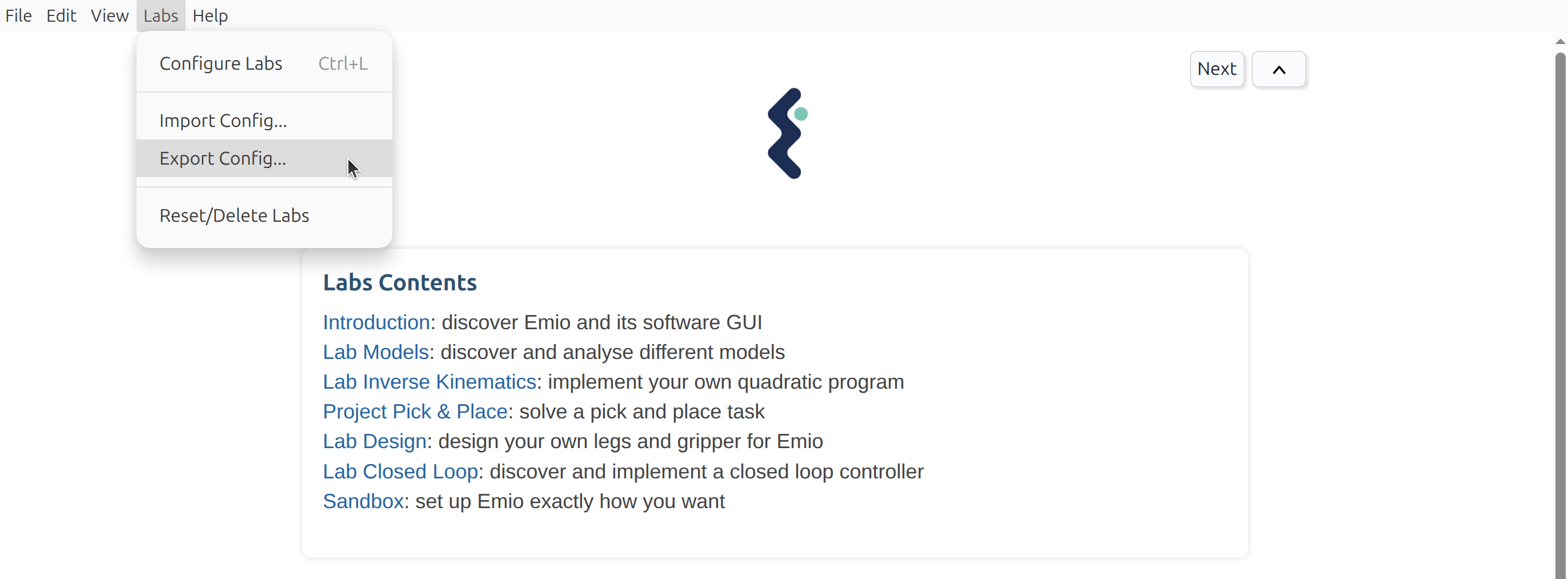
✨ Reset/Delete Labs
Easily reset your labs to their original state with the new Reset Labs feature. This is particularly useful to ensure that all students start with the same setup. You can reset individual labs or all labs at once. Follow this documentation for more details: Resetting the Labs.
✨ New Content
We are excited to introduce new content to Emio Labs. These additions will help you explore the capabilities of Emio:
- demo_sensing: A new demo that showcases the sensing capabilities of Emio using the camera.
- demo_tictactoe: Play Tic Tac Toe with Emio! This demo allows you to play the classic game against Emio, showcasing the pick-and-place capabilities of Emio, and the use of computer vision and AI to recognize the game pawns.
- Explore our GitHub repositories to access a comprehensive collection of labs and demos designed for Emio and the Emio Labs application.
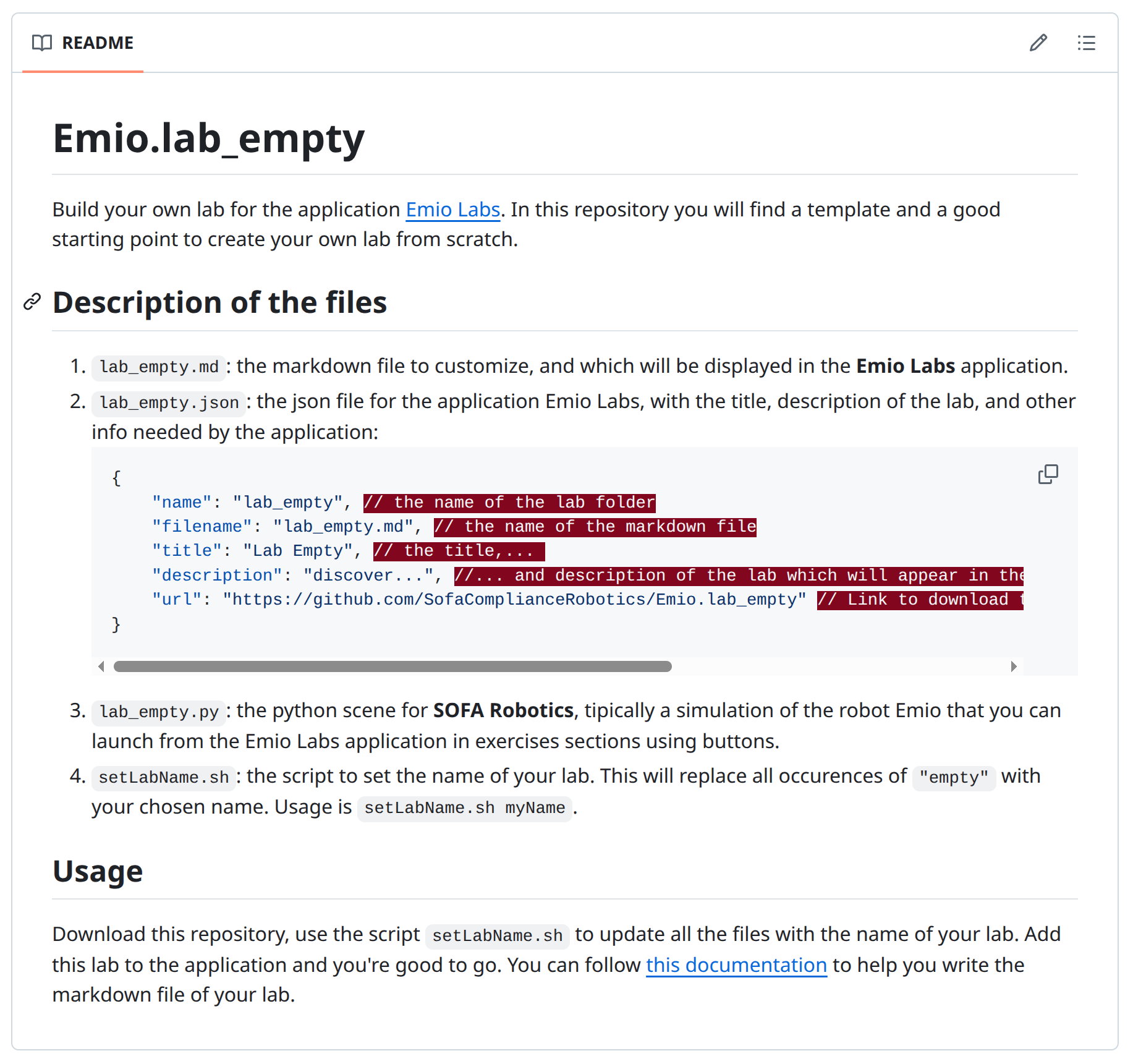
✨ Empty Lab
We've made a new GitHub repository that can be used as a template to help you getting started with the creation of your own lab. It contains a minimal setup with the necessary files to get you started quickly.
Other Changes
Enhancements
- The core assets of Emio Labs are now in a public GitHub repository. You can now open issues and propose changes.
- We have organized the sections of the labs as files to make it easier to navigate.
- The descriptions of each lab are now located in the
lab.jsonfile, directly in the lab folder (see this documentation) - You can now use your own centerpart and leg meshes, by placing them directly in the lab folder, in folders named
data/meshes/centerpartsordata/meshes/legs.
New Features
- We have reintroduced the python button to run python scripts directly from Emio Labs.
- Check for updates directly from Emio Labs. You can now check for updates and download the latest version of Emio Labs directly from the application.
Bug Fixes
- Quiz: Fixed a bug where the quiz was not working properly when reloading a page
- We have updated the lab design with the latest version of FreeCAD