Getting Started With Emio
Emio is a parallel deformable robot developed by Compliance Robotics. It features a structure composed of four servo motor-actuated deformable legs connected together.
Discovering Emio
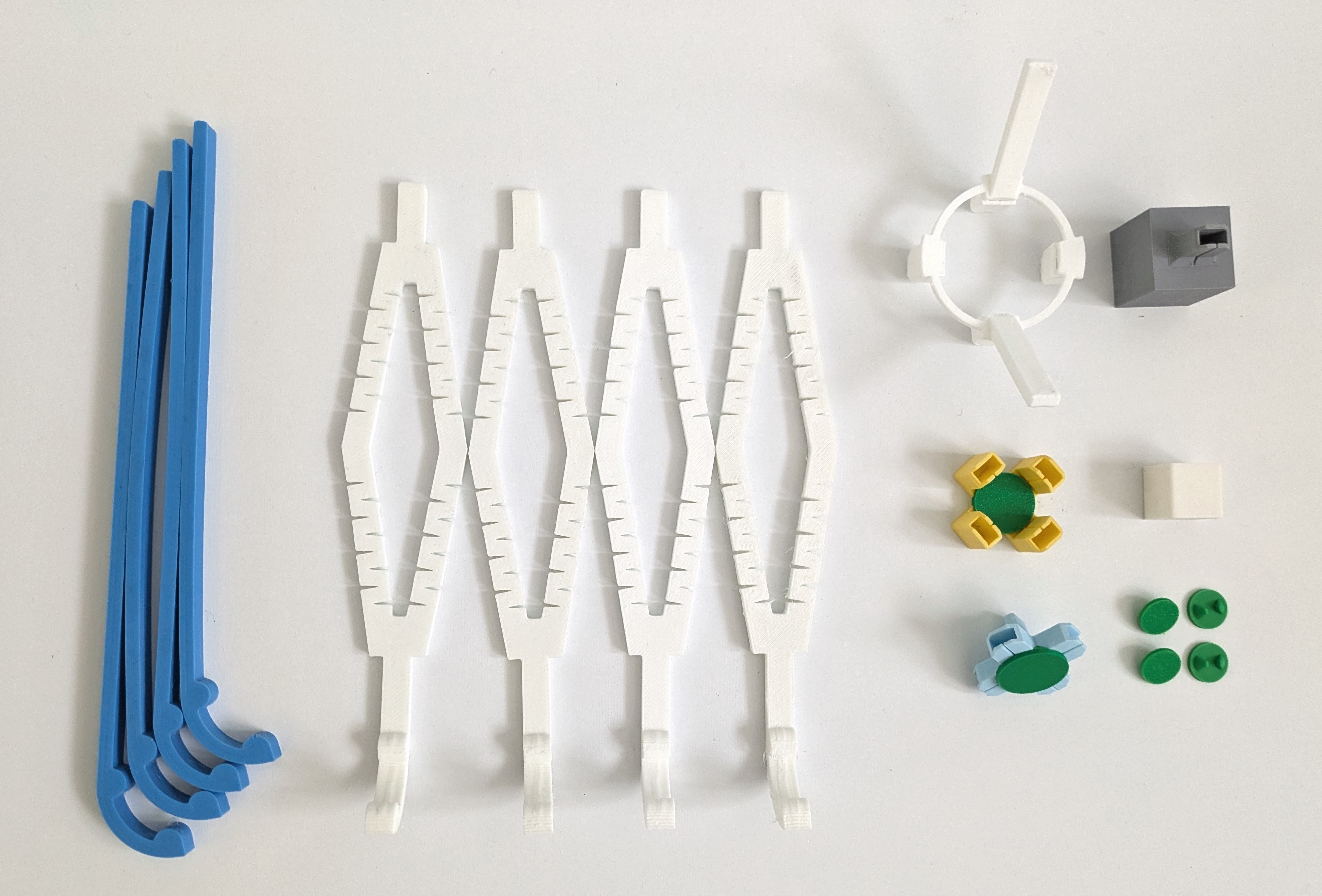
The robot comes equipped with a depth camera and a set of accessories, including multiple deformable legs and connectors, all stored in a dedicated drawer.
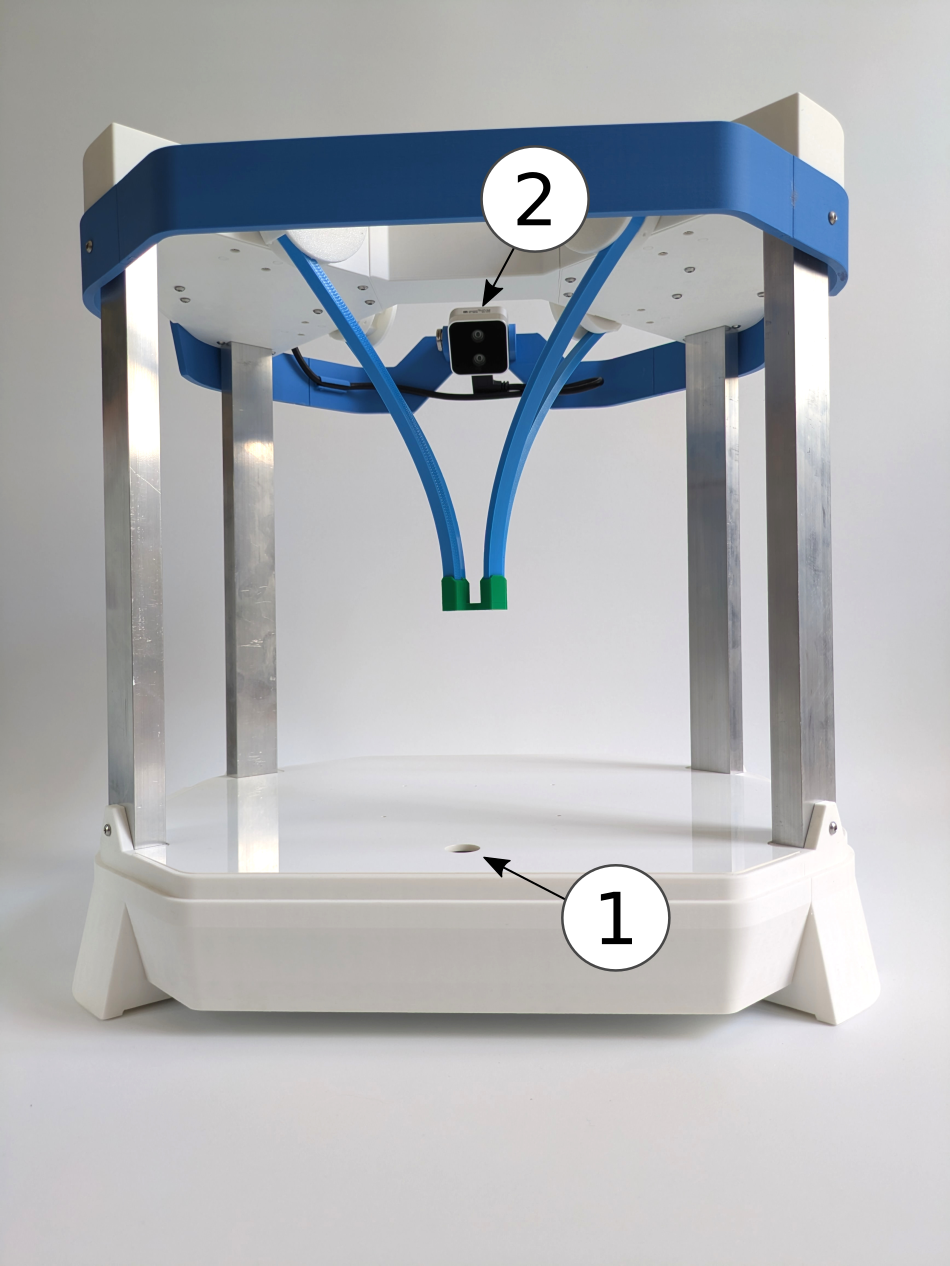
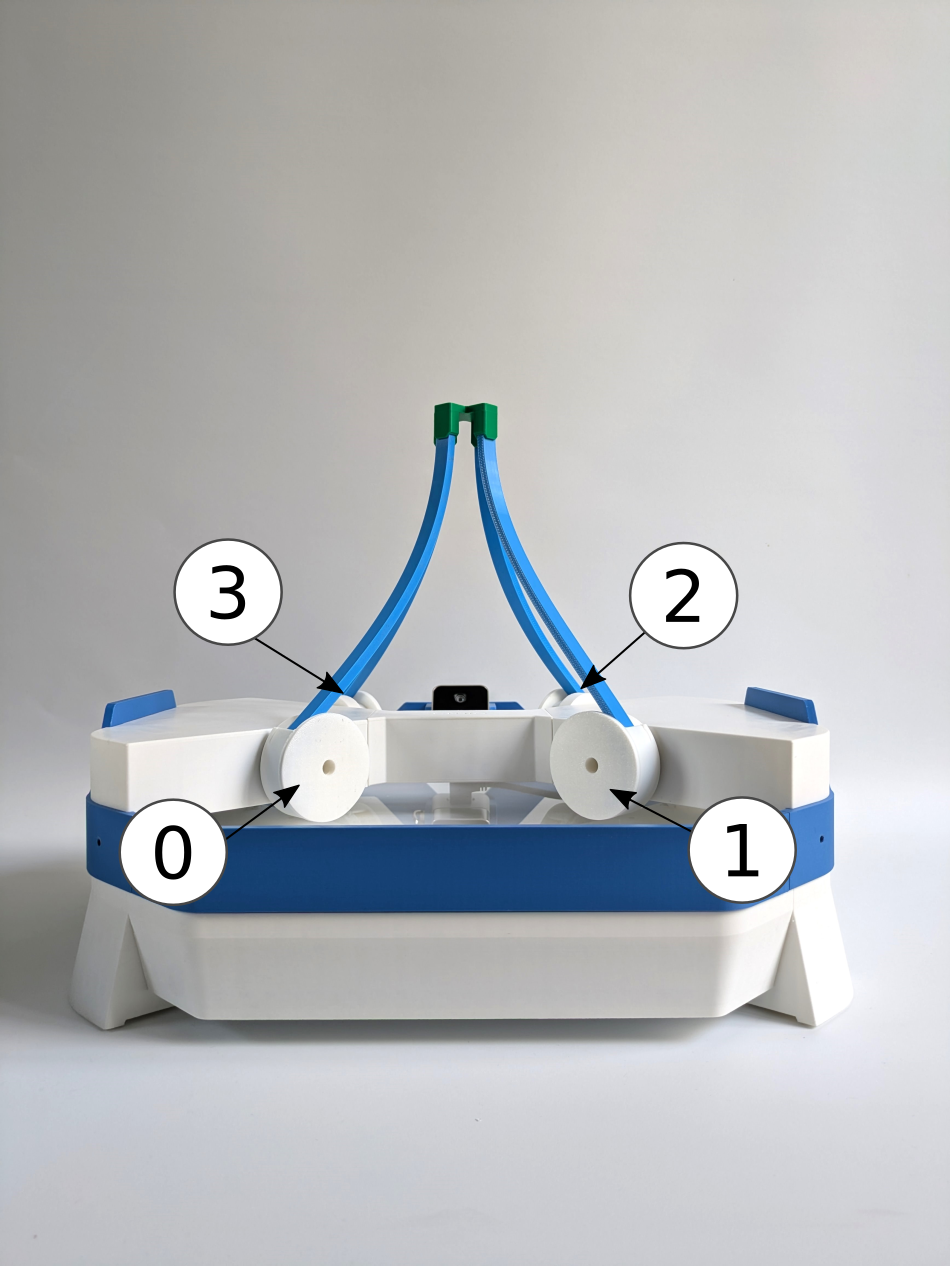
Emio features two distinct configurations, as shown in the images below:
- Extended Configuration: In this setup, the legs point downward, enabling it to perform tasks such as pick-and-place.
- Compact Configuration: Here, the legs are oriented upward, facilitating easier interaction with the robot.
Attaching Legs to Motors
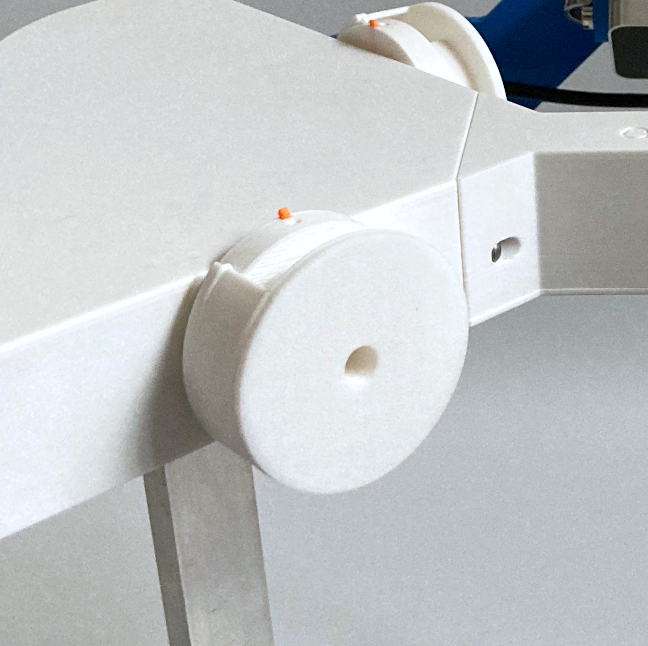
Each motor is equipped with a drum and a cap for connecting a leg.
To attach a leg to a motor:
- Find the zero position of the motor is indicated by the orange marker pointing upward,
- Simply rotate the cap until you can set the leg into the desired orientation,
- Once the leg is in place, rotate the cap again to lock it.
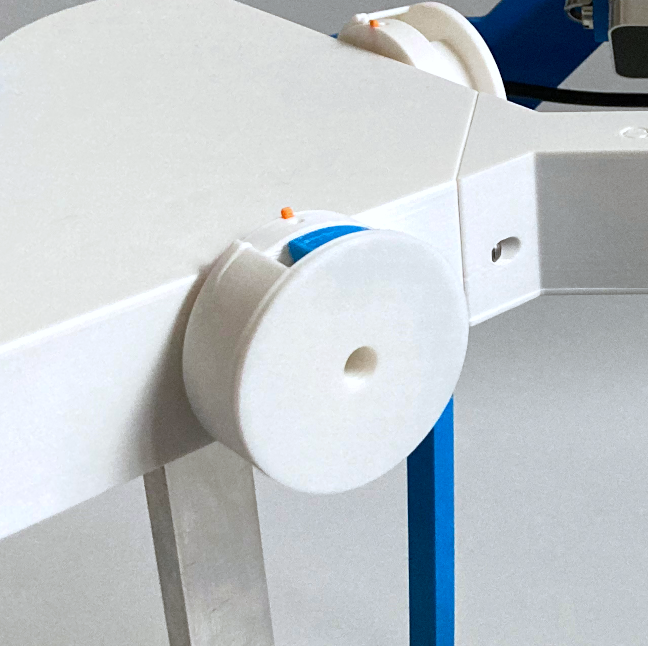
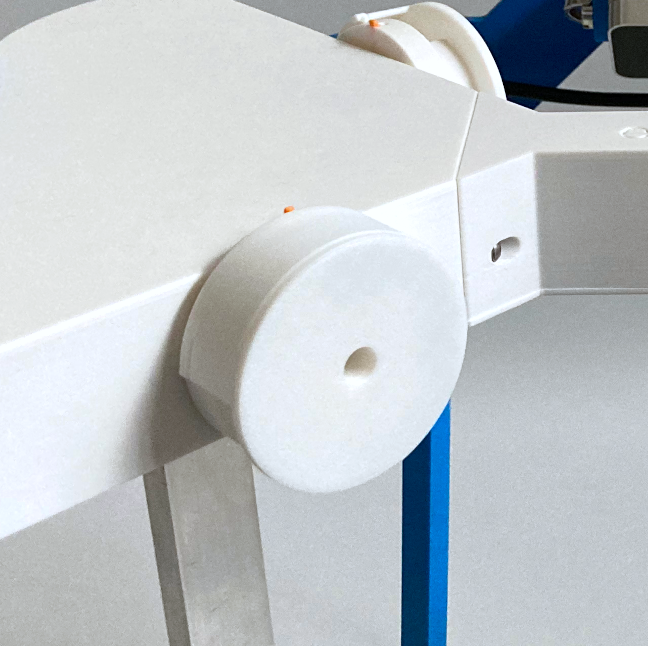
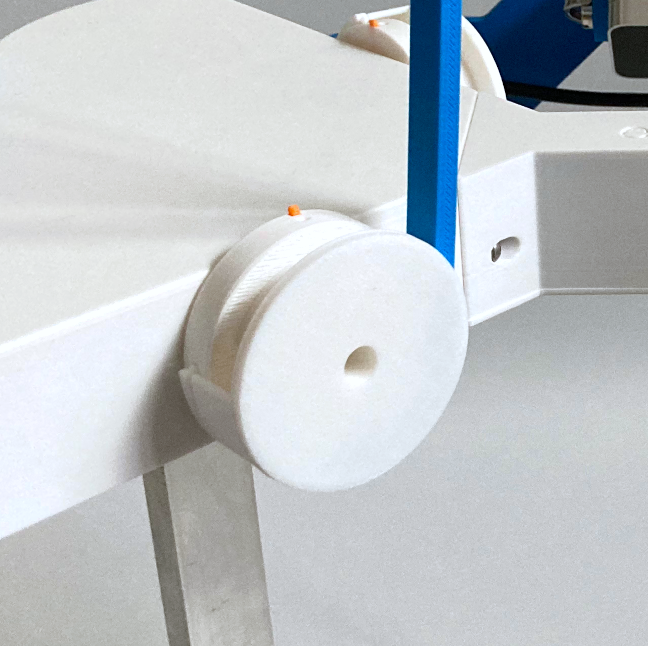
When using Emio Labs, throughout the lab sessions, you will be instructed to configure Emio into specific setups. Simply follow the provided instructions by clicking on Set up Emio. We use colors to refer to the legs and connectors, and numbers to identify the motors.
Connecting Emio to Your Computer
- Linux
- Windows
On Linux, serial ports require specific permissions to be accessed. By default, only the root user can access /dev/ttyUSB*. Here are two solutions to grant access to serial ports and pilot the real robot:
- Temporary
- Permanent
Run the following command to grant read/write permissions:
sudo chmod 777 /dev/ttyUSB0
Note: Replace ttyUSB0 with the actual port name. You can find it by running ls /dev/ttyUSB* or by using SOFA Robotics. This change will revert after reboot or disconnect.
Add your user to the dialout group to access serial devices without root privileges:
sudo usermod -aG dialout $USER
Then log out and log back in (or reboot) for the group changes to take effect. This is the recommended approach.
Depending on your version of Windows, you may need to install the FTDI drivers to pilot the robot. This is typically necessary if, upon connecting the robot to your computer, you encounter the following error message:
[ERROR] No serial port found with manufacturer = FTDI.
Installing the drivers should resolve this issue.
You will find a USB cable in the drawer to connect the robot to your computer. The robot also has a power supply and a switch. To connect Emio to your computer:
- Plug the USB cable into the USB port of Emio,
- Connect the other end of the USB cable to your computer,
- Plug the power supply into the power port of Emio,
- Turn on the switch to power the robot.
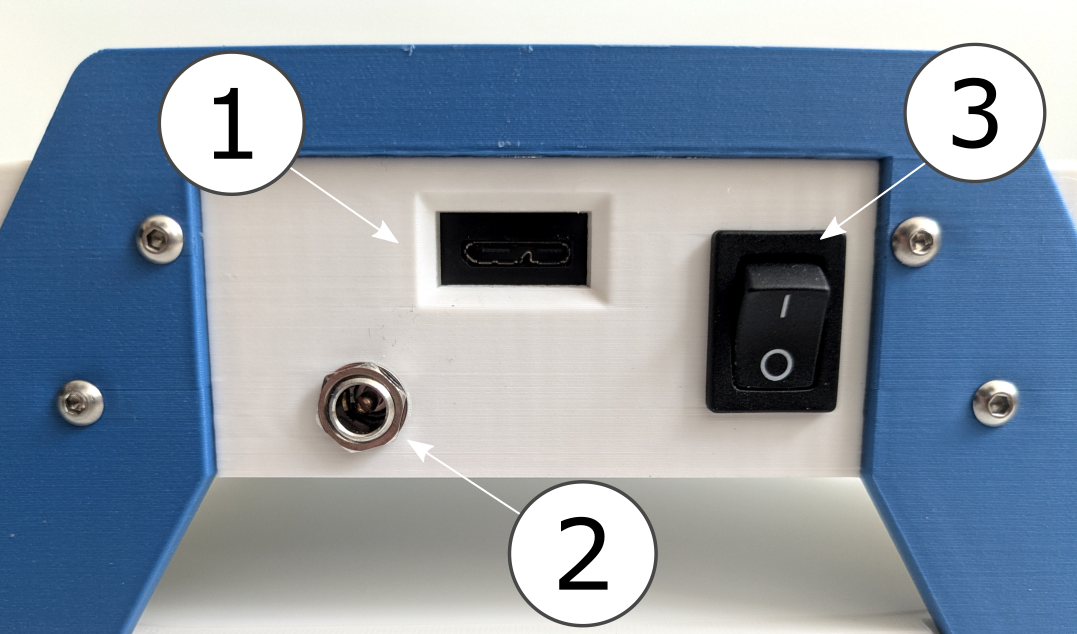
To pilot Emio, you have two options:
- You can use Emio Labs, which provides an intuitive interface to launch SOFA Robotics and run simulations to solve Emio's inverse kinematics and control the robot's end-effector.
- Or you can use the Emio API, which allows you to pilot the motors of Emio programmatically using Python.
You can find more information about these two options in the following sections.